Clear boundaries.
Zero loopholes.
Total device sanity.
The risk of missed filters and student workarounds on school devices is a pain point for parents and teachers alike. ScreenED delivers simple student web access, managed effortlessly by your IT and teachers.
Built for Google Chromebooks and Google Workspace for Education.
A guest list, not a security guard.
Most school filters try to recognise bad websites and block them. Anything they haven't seen yet gets through. ScreenED turns that around.
Try to spot what's bad
- Always a step behind. New sites and proxies appear faster than lists update.
- Allowed sites are full of side doors, like one video leading to the next.
- Teachers file tickets and wait, or IT hand-edits long lists.
- Like handing a student the car keys and saying “good luck.”
Only opens what's approved
- Nothing new loads by accident. If it isn't on the list, it isn't reachable.
- Approve one video or one page, not a whole site of surprises.
- Teachers decide for their own class in one click. IT keeps the school-wide say.
- Like driver's ed: kids get guided, locked-down, controlled exposure.
Approve once.
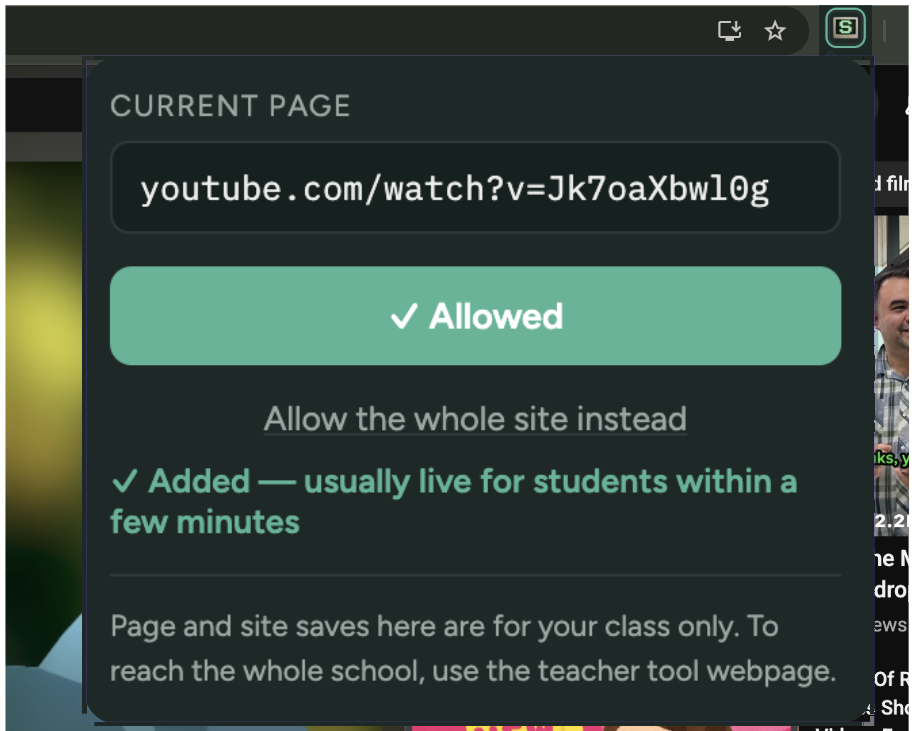
A teacher approves
One click from the page they're on, or paste a whole lesson's links at once. Links posted in Google Classroom can be approved automatically and live within minutes.
The Chromebook enforces it
Google's own device controls lock the browser down. A small locked-in ScreenED add-on handles the fine detail, like single videos. No workarounds for students.
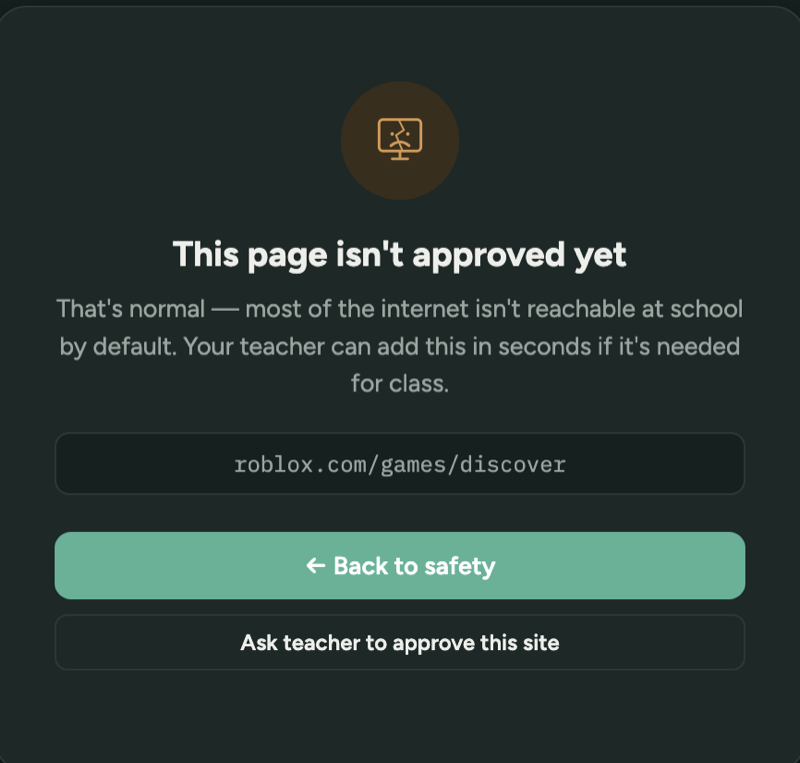
Students ask, not hunt
A blocked page is calm and plain, with an "Ask my teacher" button. The teacher answers in one tap.
Fast for teachers. Clear for IT.
For teachers
- Approve a page, a site, or a batch of links for your class or grade.
- Pre-loaded with trusted education sources, so you aren't starting from zero.
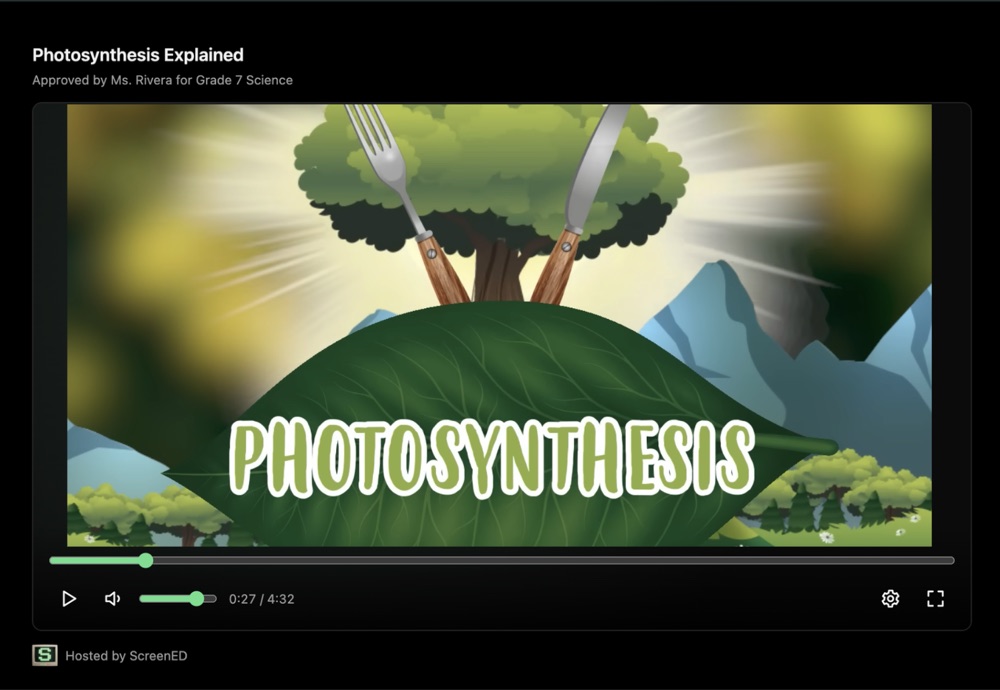
- Videos play in a clean player with no suggestions, comments or search.
- Student requests arrive with a reason attached, ready to approve or decline.
For IT and administrators
- Set up in the Google Admin console you already use. No new hardware.
- Some categories can't be approved by anyone, so a teacher can't accidentally unlock them.
- School-wide changes go through IT. Every approval shows who added it and when.
- Import your roster from a spreadsheet, and start each year with a review of who moved up.
- Your data is kept separate from every other school's, and you can export it any time.
What ScreenED is not.
A tool you can trust says where it stops. These are the limits today, stated plainly.
- Not a chat or bullying monitor. ScreenED controls where a Chromebook can go, not what students write. That's a separate, serious problem we're not rushing.
- Not for personal phones or home computers. It covers school-managed Chromebooks and browsers.
- Not instant. Google delivers settings on its own schedule, so approvals usually go live within a few minutes, not the same second.
- Not a spy tool. By design, ScreenED compares web addresses to the approved list. It doesn't read pages or keep a browsing log.
Try it on one grade, free.
We're partnering with our first schools now. Run ScreenED with one grade level for one semester, tell us what works and what doesn't, and decide from real results.
- Free for the pilot group
- Other grades stay exactly as they are
- Export your data and walk away any time
What schools ask first.
What does the school need to have?
School Google accounts for students and teachers, Chromebooks managed in the Google Admin console with the Chrome Education Upgrade licence (included with most education Chromebooks), and one person with admin rights to set it up. We give you a checklist and walk through it together.
Does IT have to install anything on each Chromebook?
No. IT adds the ScreenED add-on once in the Google Admin console for the whole student group, and every Chromebook picks it up automatically. Students can't remove it.
Can students get around it?
Not from the Chromebook. The add-on is locked in, and the usual side doors (incognito, guest mode, developer tools) are switched off. Because only approved sites open, proxy and VPN sites don't load either. What no school tool can control is a student's own phone at home.
Will teachers drown in approval requests?
That's the problem we designed hardest against. Classroom links can be approved automatically, whole lessons can be pasted in at once, common tools come as ready-made bundles, and a school starts with a list of trusted education sites.
What happens if ScreenED has an outage?
The rules live on each Chromebook, so approved stays approved and blocked stays blocked. Only new changes wait until we're back.
What about student privacy?
The school stays in charge of its students' data and ScreenED acts on the school's instructions, under a signed data agreement. We don't read pages or keep a browsing log, and each school's data is kept separate from every other school's.
Let's look at it together.
A short call, a walkthrough of the tool, and a straight answer on whether it fits your school.